

This page is about connecting external MCP servers to Basedash. If you want to
connect an MCP client to Basedash itself, see MCP
server.
What MCP connectors are for
MCP connectors are useful when you want Basedash to use tools outside of your database, such as internal APIs, support systems, product tools, or other services that already expose an MCP server. This lets you extend Basedash beyond SQL queries. For example, you can connect a remote MCP server so AI can look up information, take actions, or combine tool output with analysis from your existing data sources.How it works
When you add an MCP connector, Basedash:- Connects to the remote MCP server over streamable HTTP or SSE
- Syncs the tools exposed by that server
- Uses OAuth if the server requires authentication
- Lets you manage who can use the connector and how each tool can be used
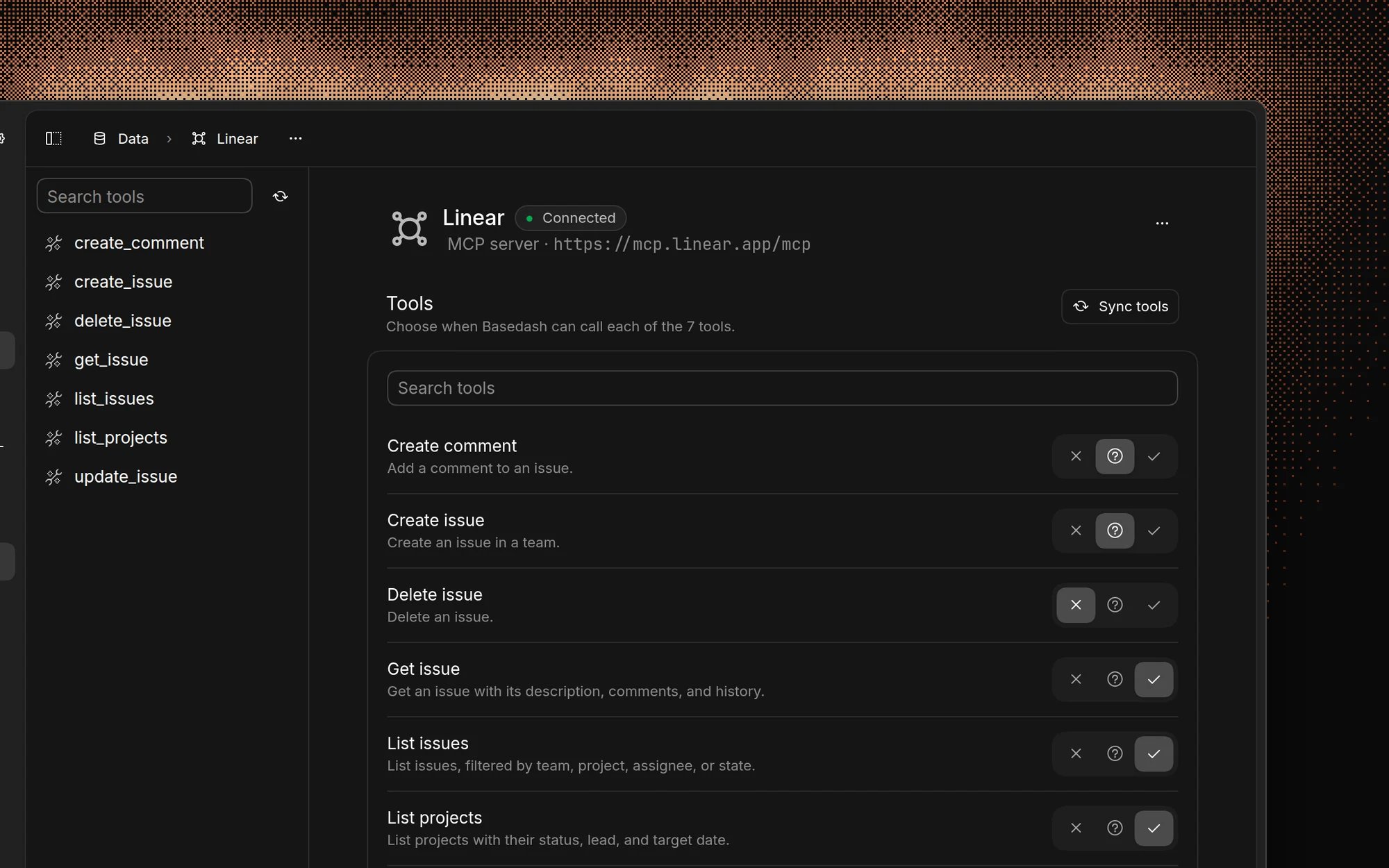
Add an MCP connector
To add an MCP connector:- Open the command menu
- Go to Data sources
- Choose Add MCP server
- Enter a name and the remote MCP server URL
- Optionally add any required headers
- Save the connector and complete OAuth if prompted
Remote MCP servers over streamable HTTP or SSE are supported.
OAuth and redirect URIs
Some MCP servers require OAuth before Basedash can use their tools. In that case, Basedash starts an OAuth flow in your browser when you finish adding the connector or when you reconnect it later. If your MCP provider requires a whitelisted redirect URI, use:https://charts.basedash.com/api/mcp-connectors/oauth/callback
If you use a self-hosted deployment, the redirect URI uses your deployment’s BASE_URL:
<your-base-url>/api/mcp-connectors/oauth/callback
For example:
https://basedash.your-company.com/api/mcp-connectors/oauth/callbackhttps://analytics.acme.io/api/mcp-connectors/oauth/callback
BASE_URL is set correctly so OAuth callbacks can return to your instance.
Access controls
MCP connectors support access control at two levels.Connector access
You can control who can access the connector:- Everyone in the organization
- Specific groups
- Specific members
Tool access
Each synced tool can also have its own access mode:- Always allow: AI can use the tool without asking
- Needs approval: AI must request approval before using the tool
- Blocked: AI cannot use the tool
Updating and reconnecting
If the remote MCP server changes, you can sync tools again from the connector page. If the connector’s authentication expires or breaks, Basedash will prompt you to reconnect it. Updating the server URL or auth configuration may require a fresh tool sync and reauthorization.Best practices
- Give the connector a clear name so people know what system it connects to
- Use connector-level access controls if the MCP server should only be available to part of your organization
- Start new tools in Needs approval until you are comfortable allowing them automatically
- Keep provider redirect URI allowlists updated if the MCP server uses OAuth
FAQ
Can I connect a local or private MCP server?
Can I connect a local or private MCP server?
No. Basedash only connects to remote MCP servers over streamable HTTP or
SSE, at an HTTPS URL it can reach on the public internet. Servers that run
over stdio on your own machine, or only inside a private network, can’t be
added.
Who can add an MCP connector?
Who can add an MCP connector?
Only admins can add connectors and change who can use them. A connector with
no access rules is available to everyone in the organization.
Does each person sign in to the MCP server with their own account?
Does each person sign in to the MCP server with their own account?
No. Each connector has one connection, and every allowed person’s tool calls
run through it with that account’s permissions. Limit connector
access to the people who should act as that account.
Which tools need approval by default?
Which tools need approval by default?
Tools the server marks as read-only start as Always allow. Every other
tool starts as Needs approval. Syncing tools again keeps any modes you
changed.
Can automations and Slack use connector tools?
Can automations and Slack use connector tools?
In Slack, the AI can use Always allow and Needs approval tools, and
approval requests appear in the thread. Automations
run without anyone watching, so they only use Always allow tools.
Insights don’t use connector tools.