

- Data source access controls whether a member can query a data source at all, and whether they can view or edit it.
- Schema, table, and column rules narrow what a member can see inside a data source they already have access to.
Only admins can manage data source access.
Manage access
You can open a data source’s access settings in two places:- Open the command menu with Cmd/Ctrl K, select the data source, and choose Access.
- On the Data page, open the data source and go to its Access section.
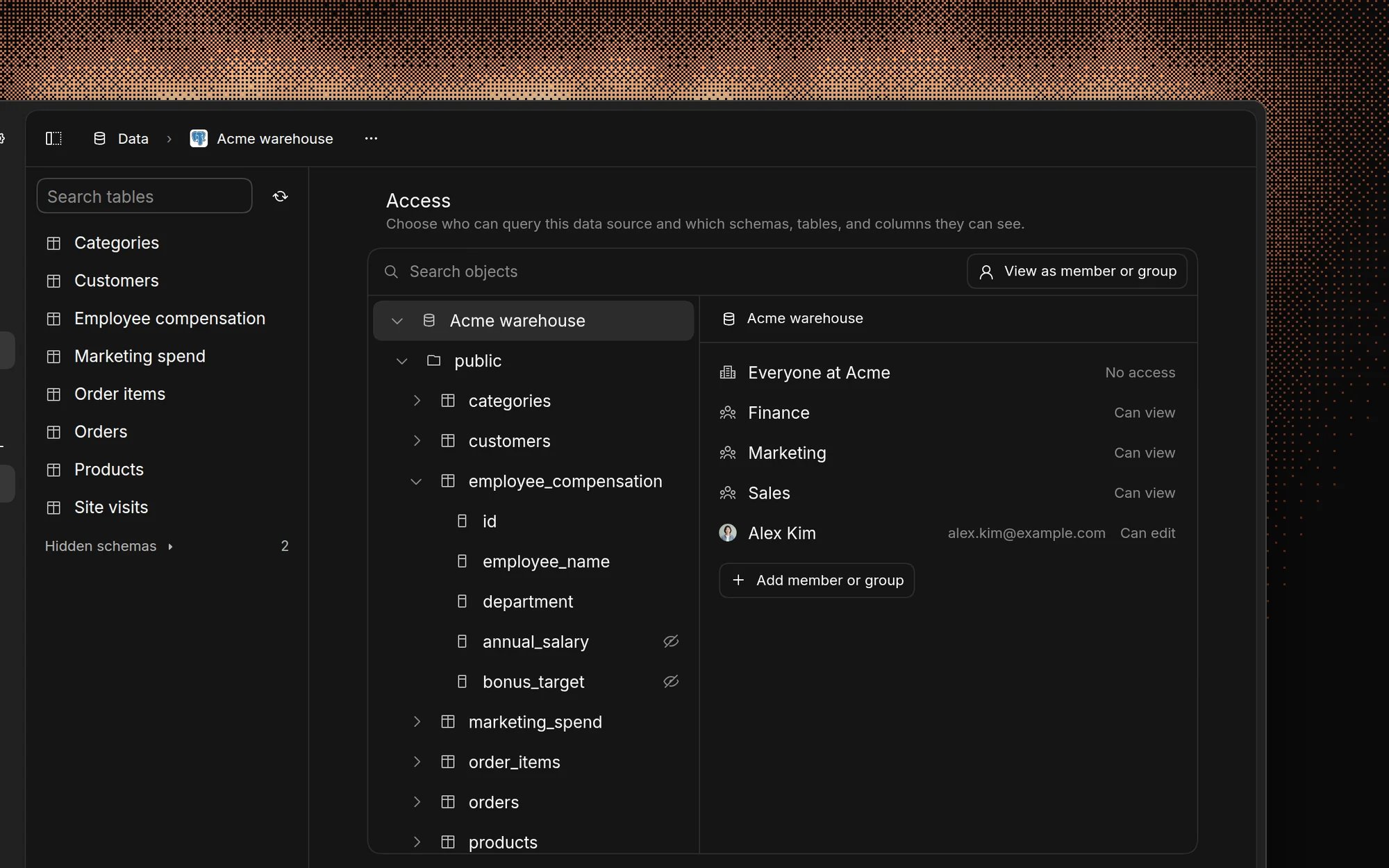
Data source access
At the data source level, you can give access to everyone in the organization, to groups, or to individual members. Each grant has one of these levels:
A member gets the highest level from any grant that applies to them: the Everyone grant, a group they belong to, or a direct member grant. Admins always have edit access to every data source.
When a data source has no grants, everyone in the organization can view it.
To restrict a data source to specific people:
- Open the data source’s Access settings.
- Set Everyone to No access.
- Click Add member or group and choose the groups or members who need access.
- Set each one to Can view or Can edit.
Schema, table, and column rules
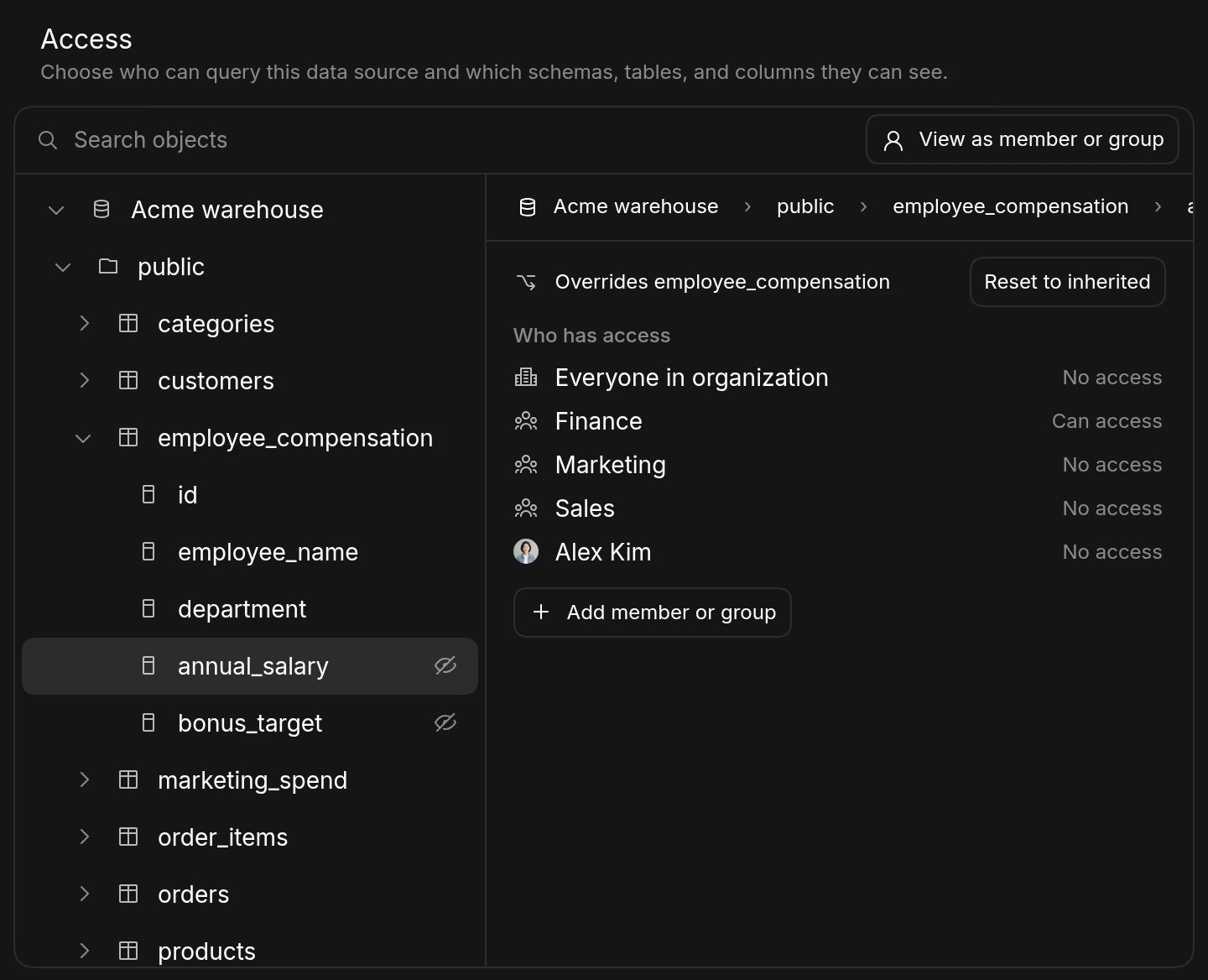
Inside a data source, you can allow or block access to individual schemas, tables, and columns. Each rule applies to everyone, a group, or a single member, and sets the object to full access or no access. Members can’t see objects they don’t have access to, either in Basedash or in what the AI knows about your schema. Queries that use those objects are blocked.How rules are evaluated
Basedash checks rules from the schema down to the table and then the column:- An object with no rule for the member inherits its parent’s access. With no rules at all, everything is accessible.
- At each object, a rule for the member takes precedence over group rules.
- If the member is in several groups with rules on the object, the most permissive group rule wins.
- Group rules take precedence over the Everyone rule.
Connectors in Basedash Warehouse
Every connector synced into Basedash Warehouse has an Access section on its connector page. It shows the same editor, limited to the schemas and tables that connector syncs. Rules you set there are stored on the warehouse, so they also appear in the warehouse’s access settings.Stale rules
If a schema, table, or column is renamed or dropped in your database, its rules stay in place and the editor marks them as stale. Remove stale rules from the editor once you no longer need them.Write queries
When a data source has any schema, table, or column rules, AI won’t run write queries on it, even for members with Can edit.Where access is enforced
Data source access and object rules apply everywhere queries run:- Charts and dashboards
- AI chat, including chats from Slack and the MCP server
- Automations, which run with the access of the member who created them
- The SQL editor
- Data exports, such as table record exports
- Chart variables, where only accessible data sources appear in the variable editor
Manage access with the API
Admins can read and update data source access, including schema, table, and column rules, with the public API. See Get data source access and Update data source access.FAQ
How is this different from data visibility and row-level security?
How is this different from data visibility and row-level security?
Access control decides which members and groups can query a data source and
which schemas, tables, and columns each of them can see. Data
visibility hides objects from everyone in
the organization, mostly to keep clutter away from the AI. Row-level
security filters rows inside a table
with Postgres policies.
What do members see on a dashboard with charts they can't access?
What do members see on a dashboard with charts they can't access?
The chart stays on the dashboard but shows a message instead of data, such
as No access when the query uses a table or column that’s blocked for
them, or “You don’t have access to query this data source”.
Can I hide a column from admins?
Can I hide a column from admins?
Yes. Admins always have access at the data source level, but schema, table,
and column rules apply to them too when they query. They still see every
object in the access editor so they can manage the rules.
Whose access do public dashboards use?
Whose access do public dashboards use?
The dashboard creator’s. Anyone with a public link sees what the creator can
see, with the creator’s schema, table, and column rules applied. If the
creator is removed from the organization, the dashboard’s charts stop
loading. Full-app embedding signs people in as
members, so their own access applies.
Do automations and insights respect these rules?
Do automations and insights respect these rules?
Yes. Automations run with the access of the member who created them.
Insights are only shown to members who can query the
data behind each post.
Related features
- Data visibility controls – Hide tables, schemas, and columns from everyone in the organization.
- Row level security – Control which rows users can see in a Postgres data source with database policies.
- Security – Overview of access controls and security in Basedash.