

How data hiding works
When you hide a table, schema, or column in Basedash:- AI cannot write queries that reference the hidden data
- Hidden data appears as if it doesn’t exist to all users in your organization
- Changes apply organization-wide - all team members are affected
- Hiding sensitive or internal data
- Removing deprecated tables from AI suggestions
- Controlling what data the AI can analyze
- Maintaining data governance and compliance
Hiding tables
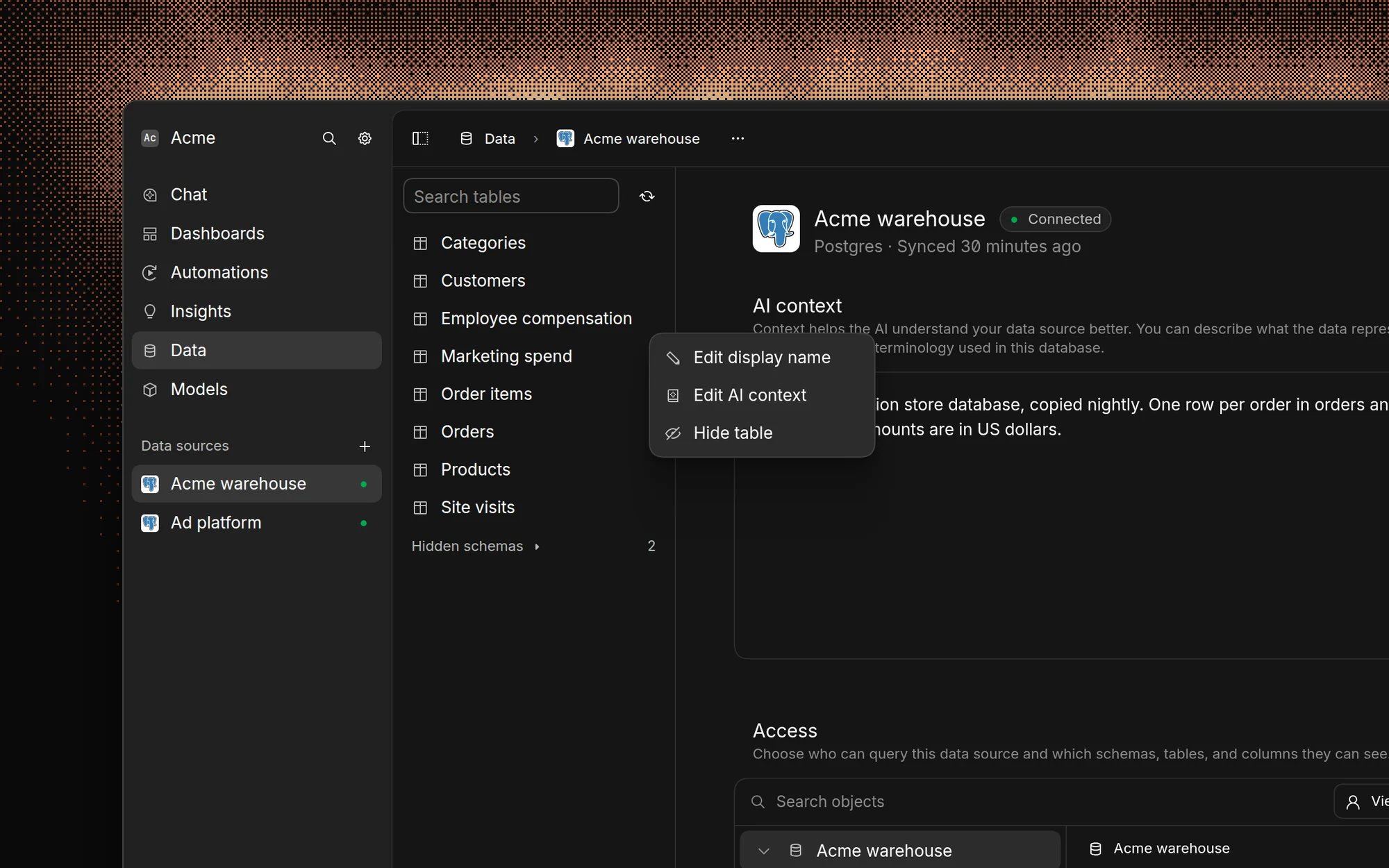
To hide an entire table:- Open the Data page and select the data source containing the table.
- In the table list on the left, right-click the table.
- Select Hide table.
Hiding schemas
To hide an entire schema:- Open the Data page and select the data source containing the schema.
- In the table list on the left, hover over the schema name.
- Click the Hide schema button that appears next to it.
Hiding columns
To hide specific columns within a table:- Open the Data page and select the table.
- Open the column visibility menu in the table’s header. It shows how many columns are hidden.
- Uncheck the columns you want to hide.
Unhiding data
To make hidden data visible again:- Schemas: on the Data page, expand Hidden schemas, hover over the schema, and click Show schema.
- Tables: hidden tables don’t appear on the Data page, so use the command menu. Press Cmd/Ctrl K, open Data sources, select the data source, and select the table. Hidden tables are marked “Table is hidden”. Turn off Hidden.
- Columns: check the column again in the column visibility menu, or select the column in the command menu and turn off Hidden. In the command menu, hidden columns are marked “Column is hidden”.
Best practices
Data governance
- Document your hiding decisions - keep track of why certain data is hidden
- Regular reviews - periodically review hidden items to ensure they’re still necessary
- Team communication - inform your team about what data has been hidden and why
Security considerations
- Sensitive data - hide tables containing PII, financial information, or internal metrics
- Test data - hide development or testing tables that shouldn’t be analyzed
- Deprecated data - hide old tables that are no longer maintained
Performance optimization
- Unused tables - hide tables that are no longer actively used
- Large datasets - consider hiding very large tables that could impact query performance
- Experimental data - hide tables that are still in development
FAQ
Should I hide data or use access control?
Should I hide data or use access control?
Hide data that nobody should see or analyze, like test or deprecated tables.
Hiding applies to everyone at once. To limit sensitive data to certain
people, use data source access
control, which sets rules per
member or group and is checked on every query.
Does hiding delete data or affect syncing?
Does hiding delete data or affect syncing?
No data is deleted from your database. When a schema is hidden, Basedash
stops syncing its structure, so tables added to it later stay hidden too.
Who can hide data?
Who can hide data?
Admins and members who can query a data source can hide its tables and
schemas for everyone. View-only members can’t. Hiding a column from the
column visibility menu only applies to the whole organization when an admin
does it.
The AI still references data I hid. Why?
The AI still references data I hid. Why?
Check in the command menu that the table or column has Hidden turned on,
or that its schema is under Hidden schemas. Existing chats and charts
may still contain SQL that uses the data, so start a new chat to check.
Related features
- Data sources - Learn about connecting and managing your data
- Security - Understand Basedash security features
- Tables - Explore table viewing and management capabilities