

Connection URI (recommended)
The easiest way to connect is by using a connection string (URI). In Basedash, press Cmd/Ctrl K and paste your connection string to start the connection flow immediately. Example:Manual connection details
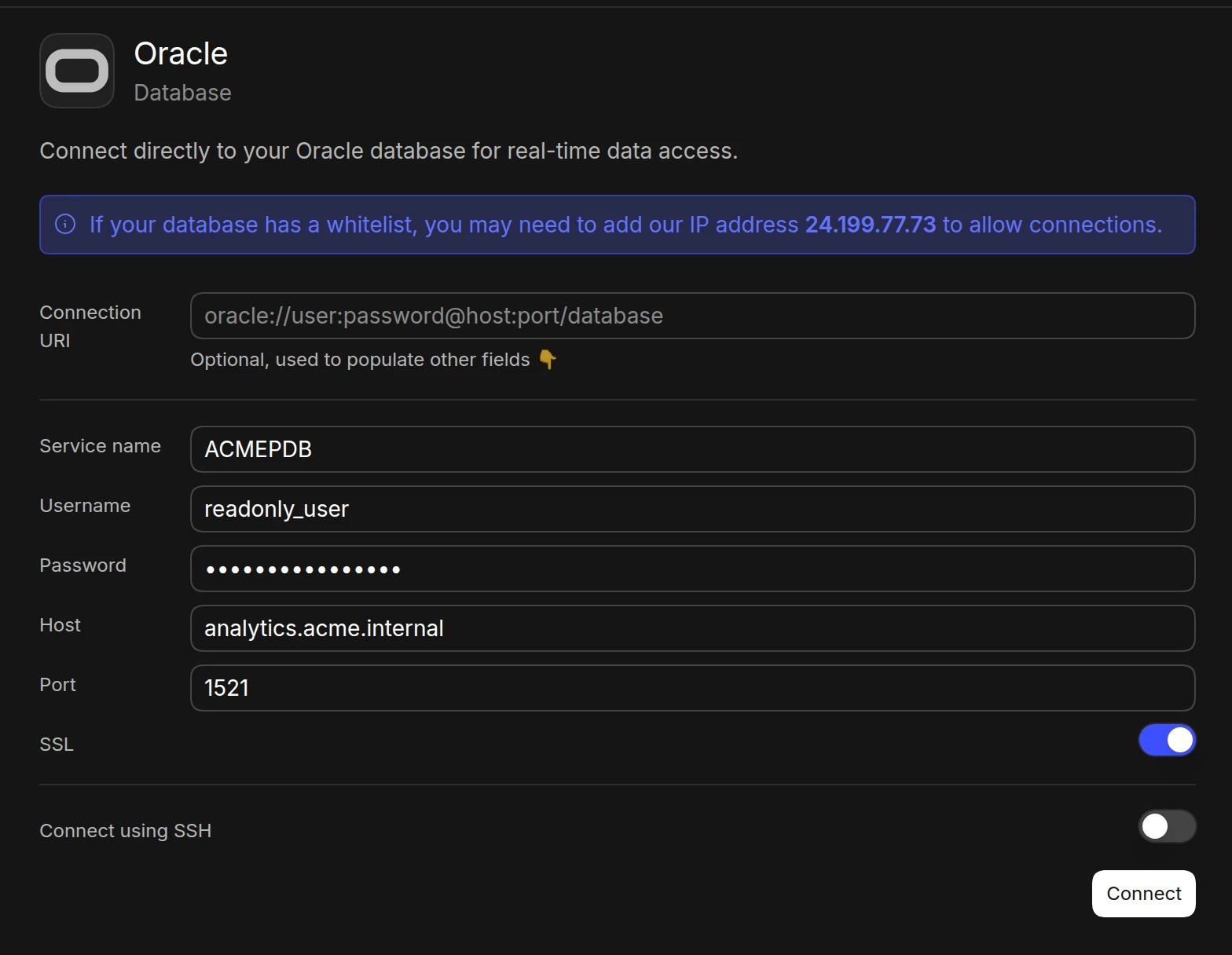
If you prefer to enter credentials manually, use the following details:- Open the Data page and click Add data source
- Select Oracle
- Enter your connection details:
- Service name (e.g.,
orclpdb1) - Username
- Password
- Host (e.g.,
your-db.host.com). You can also paste a full connect descriptor, such as(DESCRIPTION=(ADDRESS=...)(CONNECT_DATA=...)) - Port (default: 1521)
- SSL (turn on to connect over TCPS)
- Service name (e.g.,
- Click Connect. Basedash checks the connection, then opens the new data source and starts syncing its schema.
SSH tunnel
For enhanced security when your database is in a private network:- Follow the manual connection steps above, but don’t click Connect yet
- Turn on Connect using SSH
- Add our IP (
24.199.77.73) to your allowlist - Provide SSH connection details:
- SSH host and SSH port
- SSH username
- Set Authentication method to Private key (recommended) and paste your SSH private key, plus its passphrase if it has one. Password authentication is also supported.
- Click Connect
Required permissions
Create a dedicated user for Basedash with read access to the schemas you want to analyze:SELECT grant for each table or view Basedash should see, or use a role that bundles them.
Best practices
- Use a read-only user for Basedash
- Enable SSL (TCPS) for secure connections
- Consider using an SSH tunnel for databases in private networks
- Regularly rotate database credentials
Troubleshooting
For what each connection error means and how to fix it, see Connection settings.- Use the service name, not the SID, in the database name field
- Verify firewall and listener settings allow connections from the Basedash IP (
24.199.77.73) - If SSL fails, confirm your listener accepts TCPS connections on the port you entered
- Confirm the user has
CREATE SESSIONandSELECTon the tables you expect to see
Next steps: Add custom context
You can add custom context to help the AI better understand your data structure and business logic. Consider adding context at the database or schema level if you notice the AI struggling to locate or understand specific data.When to add context
- Unclear naming conventions: If table or column names don’t clearly indicate their purpose
- Business-specific terminology: When your data uses internal abbreviations or custom terms
- Large enterprise schemas: When the AI needs help finding the right tables among many