

Prerequisites
- An Elasticsearch cluster with the SQL API enabled
- The Elasticsearch REST endpoint for your cluster
- An API key, or a username and password, with read access to the indices you want to query
Connection setup
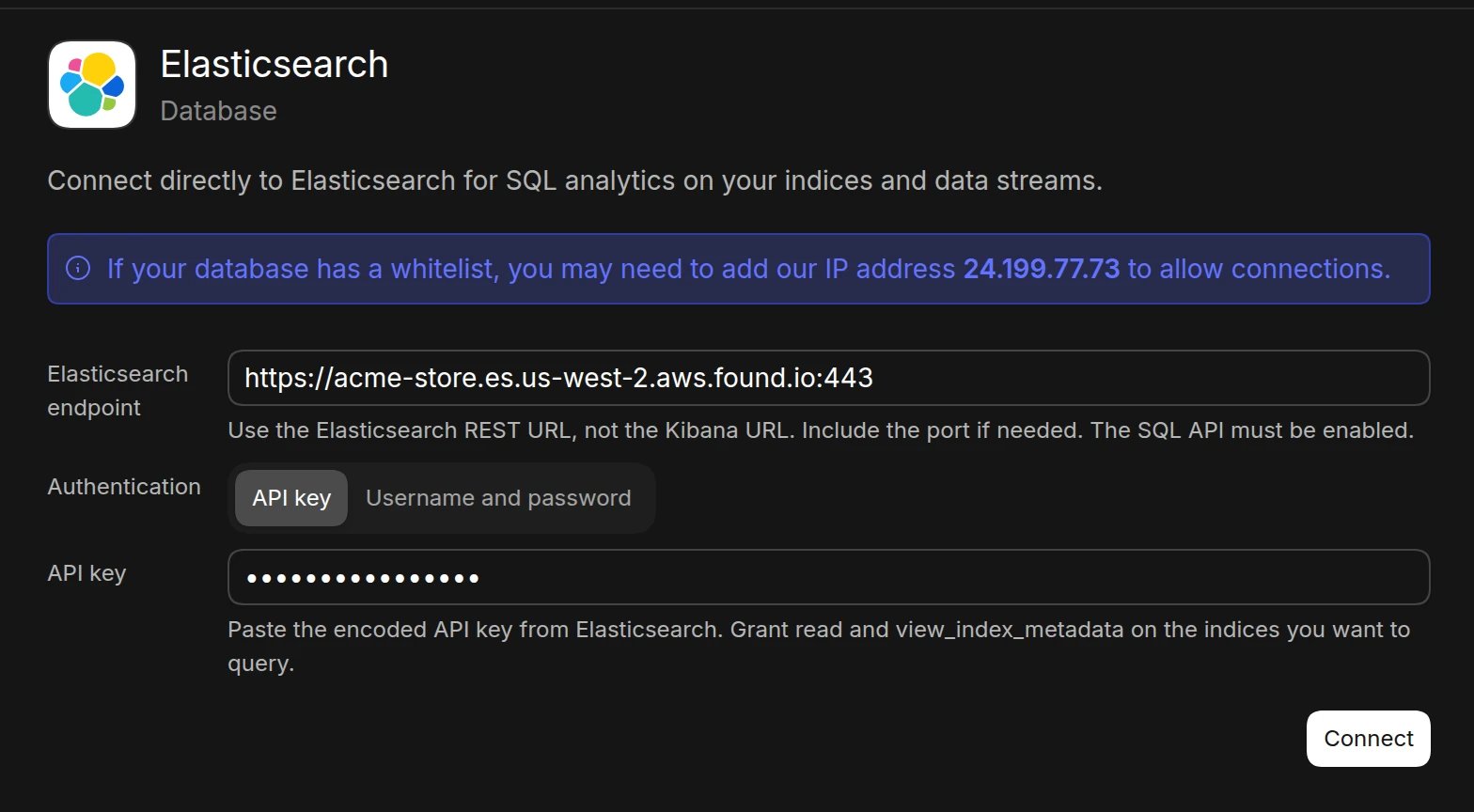
- Open the Data page and click Add data source
- Select Elasticsearch
- Enter your Elasticsearch endpoint (e.g.,
https://example.es.cloud.es.io:443). Use the Elasticsearch REST URL, not the Kibana URL, and include the port if needed - Choose an authentication method:
- API key: paste the encoded API key from Elasticsearch
- Username and password: enter the credentials for a dedicated user
- Click Connect. Basedash checks the connection, then opens the new data source and starts syncing its schema.
Required permissions
Grant the API key or user these index privileges on the indices and data streams you want to query:readview_index_metadata
Best practices
- Create a dedicated API key or user for Basedash
- Limit privileges to the indices Basedash needs
- Regularly rotate API keys and passwords
Troubleshooting
For what each connection error means and how to fix it, see Connection settings.- If you see an “SQL endpoint not found” error, check that you used the Elasticsearch endpoint (not Kibana) and that the SQL API is enabled
- Verify the API key or user has
readandview_index_metadataon the target indices - Use unique column aliases in SQL; Elasticsearch rejects results with duplicate column names
Next steps: Add custom context
You can add custom context to help the AI better understand your data structure and business logic. Consider adding context at the database or schema level if you notice the AI struggling to locate or understand specific data.When to add context
- Nested or object fields: When the AI needs help understanding document structure
- Unclear naming conventions: If index or field names don’t clearly indicate their purpose
- Time-based indices: When the AI should know which index pattern or timestamp field to use