

Only admins can add data sources. SaaS connectors are available on Basedash Cloud only, not on self-hosted deployments.
Add a connector
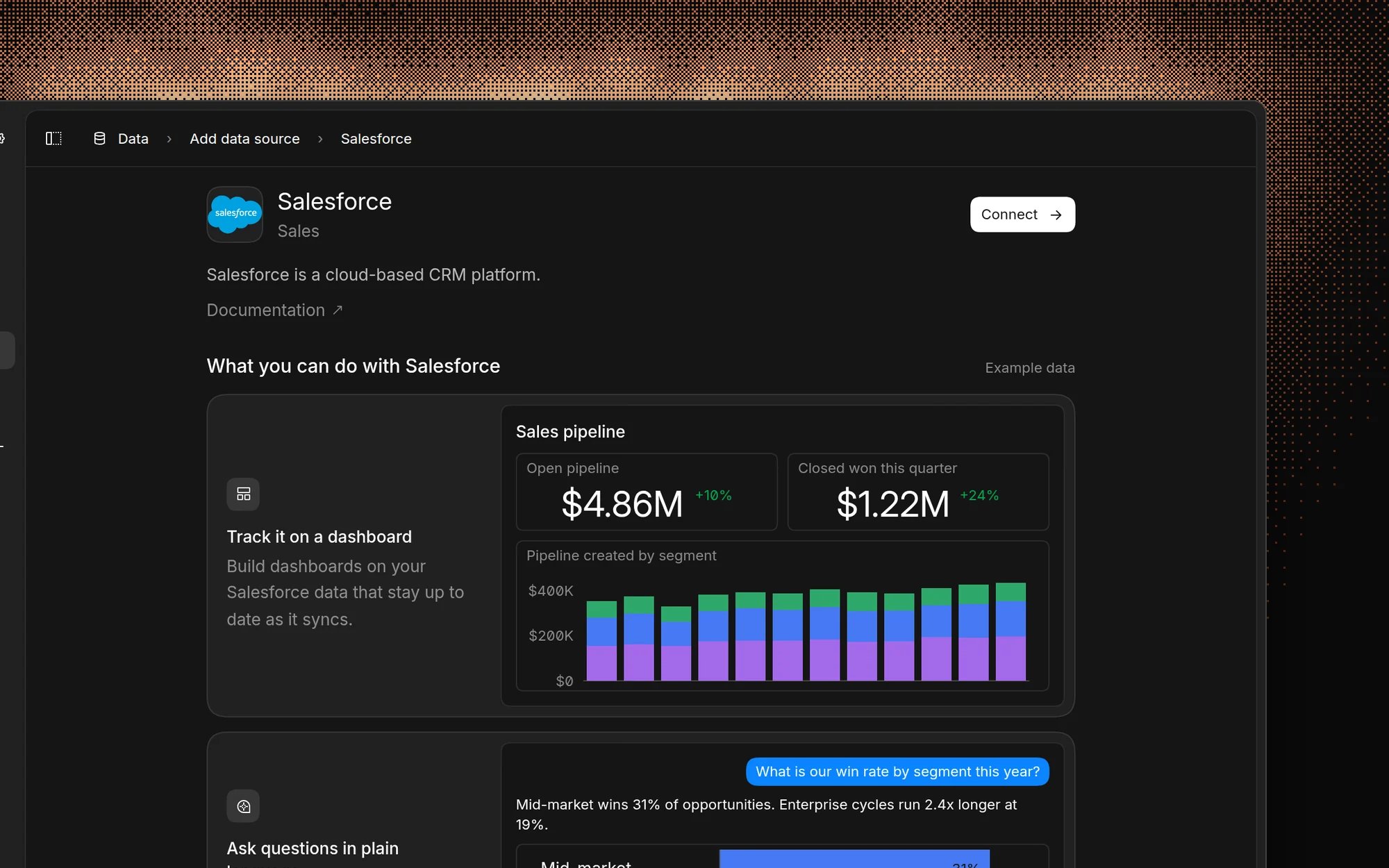
- Go to the Data page and select Add data source.
- Search for the tool you want to connect, or browse by category.
- Open the connector and select Connect.
- Sign in to the tool and authorize access in the setup form that opens. A few connectors, like Stripe, ask for an API key instead.
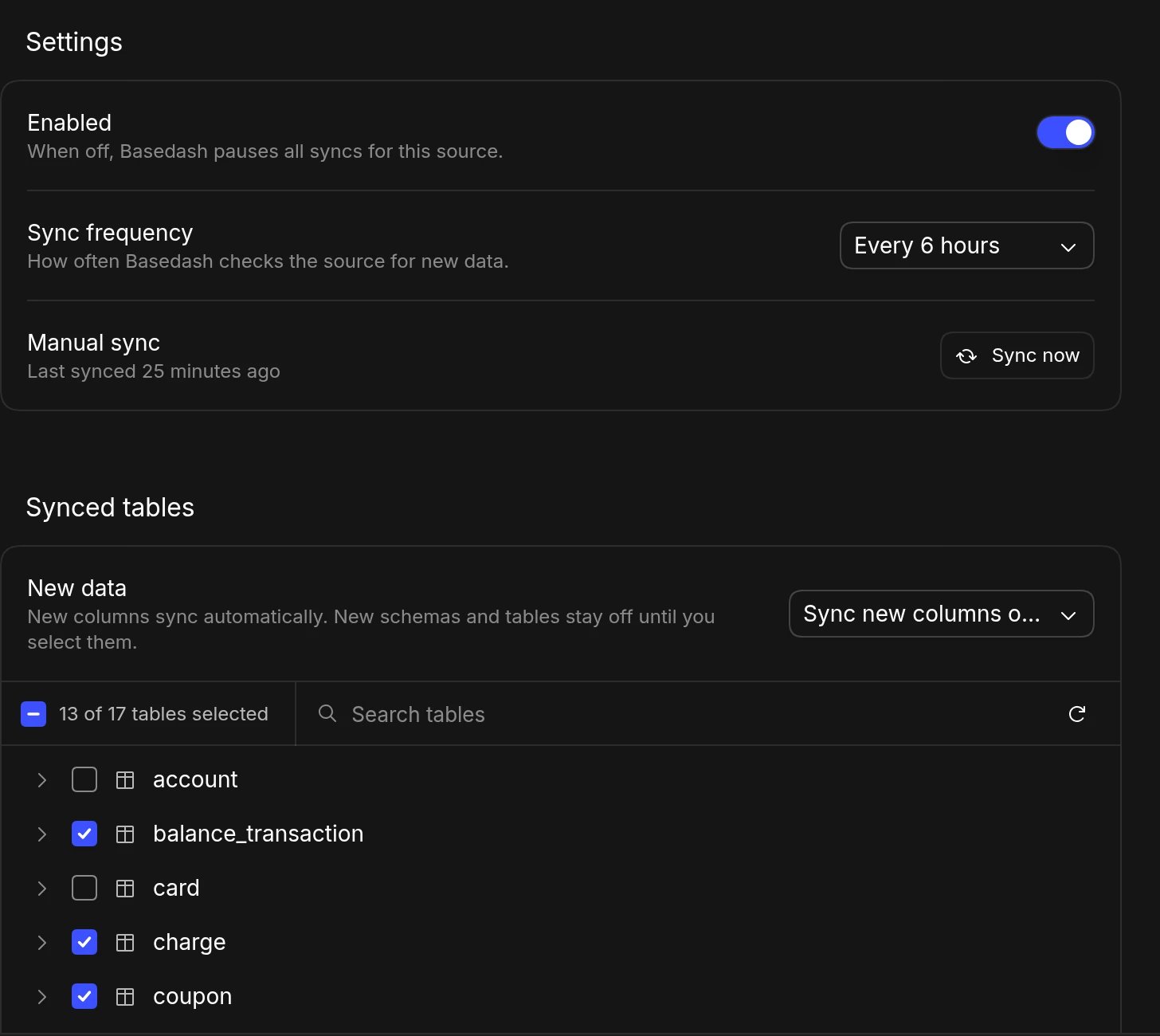
- Basedash creates the connector and starts the first sync. When it finishes, the synced tables appear on the Data page.
Popular connectors
Sales and CRM
Finance and billing
Marketing and ads
Product analytics and events
Support
HR and recruiting
Engineering
Productivity
Files and spreadsheets
E-commerce
Don’t see your tool?
- If the data lives in a database or warehouse, connect it directly.
- If the tool exposes an MCP server, add it as an MCP connector so AI can use its tools.
- Otherwise, email support@basedash.com and tell us what you need.
Related
- Basedash Warehouse - Where connector data is stored
- Data source access control - Control who can see each connector’s tables
- Connect your data - All the ways to connect data